
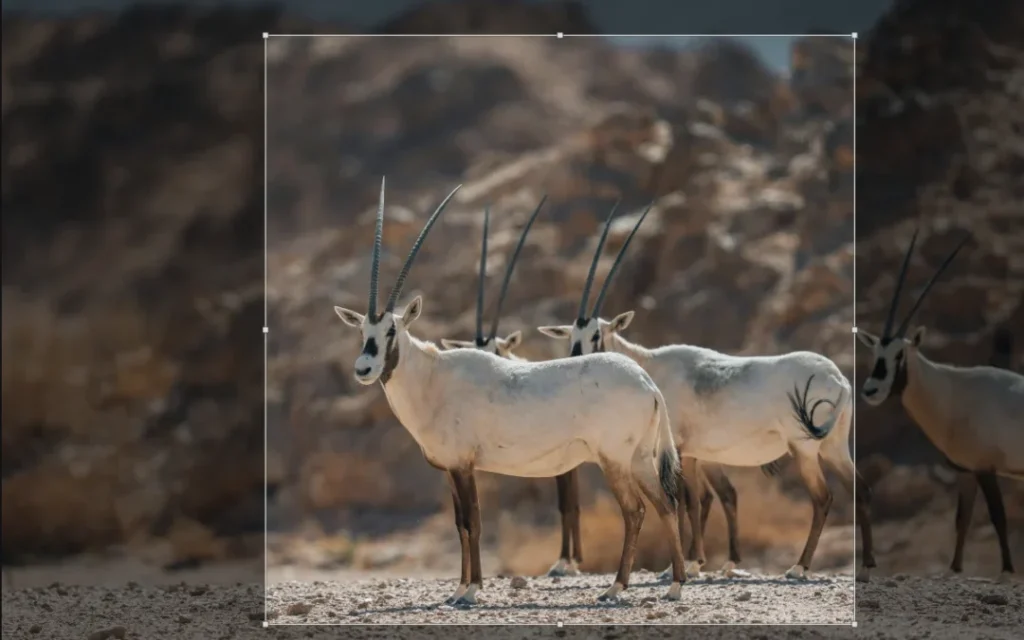
If you’ve ever uploaded images to your website, you understand the importance of mastering image cropping and compression. Avoiding wasted time and steering clear of large image uploads is crucial. Below is a guide on how to effectively crop and compress images for web use.
Why is it Essential to Learn Image Cropping and Compression? Image files are data-rich, often resulting in massive file sizes. For instance, images downloaded from platforms like unsplash.com can range from 8MB to 12MB or more. Incorporating such large images on your website significantly impacts page load times, leading to a poor user experience. Slow loading speeds also adversely affect search engine rankings, such as those of Google, and can reflect negatively on your site’s overall performance.
Moreover, using images with varying dimensions can create a disorganized appearance unless used deliberately. This underscores the importance of knowing how to crop and compress images, ensuring a cohesive look for your website while maintaining optimal loading speeds.
Step 1: Cropping Images Once you have the desired high-quality photo for your website, it’s time to adjust its dimensions. In this example, we’ll be cropping an 8.5MB photo into a square shape. Follow these steps using the image cropping tool available at imageresizer.com:
- Upload your image.
- Select your desired aspect ratio (e.g., 1:1 Square).
- Make your cropping selection.
- Click the “Crop” button to finalize.
This process streamlines your images for web use, enhancing both visual consistency and site performance.
Step 2: How to Compress Your Images
Now that you have an image that is the right dimensions, let’s reduce that file size!
Go to compressimage.io.
Before uploading your image, select your options by clicking the little settings icon. Here are the settings I often recommend, but you may want to adjust them for your specific needs:
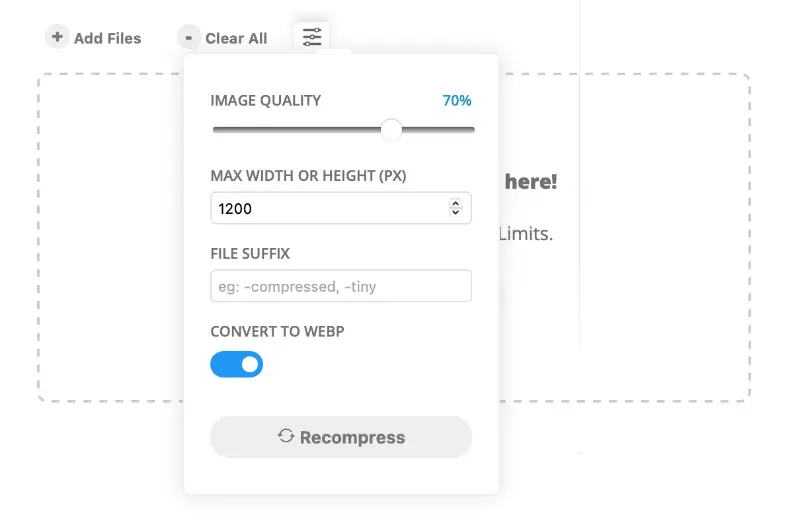
Once you have your settings in place, simply drop your image(s) onto the screen. Your image(s) will be compressed quickly, and you can download a single image or a zip file of multiple images at once. Here’s what that process looks like:
In our example image, the file started out at 8.5MB. After cropping and compressing it, the image file is now a mere 122KB! That’s a massive reduction in file size, but the quality is still great. Check it out:

Now You Know How to Crop and Compress Images for Your Site
That’s it! Now you know how to crop and compress images for the web. No more giant images slowing down your website.